
Getting Started
MediStock imports your medications from Apple Health and manages their stock automatically. Here is how to set up the app:
- Open MediStock and switch to the Health tab.
- Tap Connect to connect MediStock to Apple Health.
- Allow access to your medication data in the Health dialog that opens.
- The medications stored in Apple Health appear in the list. Tap Import to add them to MediStock.
- Then set the current stock of each medication (see Adjust Stock).
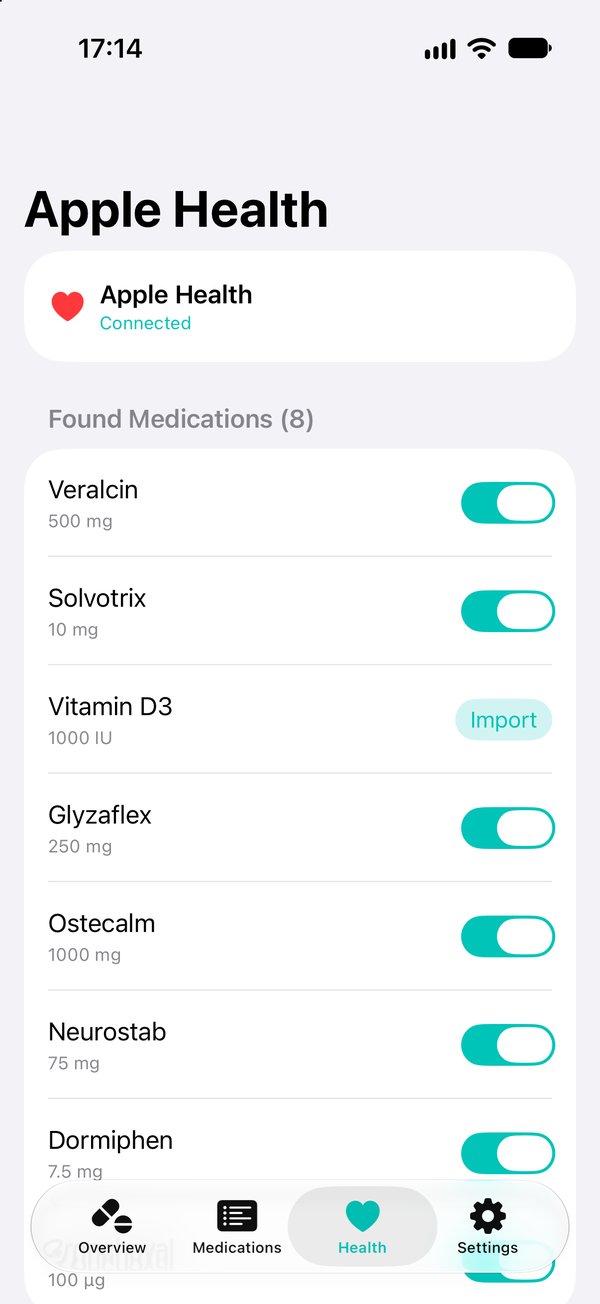
Health: Connect & Import
Make sure your medications are set up in the Apple Health app before you open MediStock.
Dashboard (Overview)
The dashboard is the start screen of MediStock and gives you a quick overview of all your medications.
What you see here
- The total number of your medications and the number with low stock
- Medication cards with name, dosage, current stock and color indicator
- A progress bar showing the stock in relation to the alert threshold
Color system
- Green – stock is sufficient
- Orange – stock has reached the alert threshold
- Red – stock is used up (0)
With the All / Low Stock filter you can quickly show only the medications that need your attention.
Supply forecast
For medications with a schedule in Apple Health, MediStock also shows on the card the date until which your stock is expected to last (e.g. Lasts until July 14, 2026).
How is it calculated?
Apple Health does not provide MediStock with the actual schedule data (e.g. “1 tablet daily at 9 AM”) – only whether a schedule exists at all. MediStock therefore estimates your consumption from the dose history you have actually logged:
- All doses marked as “taken” in the last 30 days are used (lookback window).
- These doses are added up and divided by the number of distinct calendar days on which at least one dose was logged → average daily consumption.
- Lasts-until date = today + (stock ÷ daily consumption).
You take 1 tablet daily and have consistently logged your doses in Apple Health over the last 30 days. You have 64 tablets left in the cabinet.
- Lookback window: 30 days → 30 doses found
- Number of calendar days with a dose: 30
- Daily consumption = 30 ÷ 30 = 1.0 tablets/day
- Supply = 64 ÷ 1.0 = 64 days
Taking it twice daily over the same 30 days would give 60 doses ÷ 30 days = 2.0/day → 32 days of supply.
Newly imported medications without a history do not show a date yet – it appears as soon as the first doses are logged. The more history there is, the more precise the estimate becomes. Irregular doses are smoothed out by the 30-day average. Medications taken as needed (without a schedule in Health) do not show a lasts-until date.
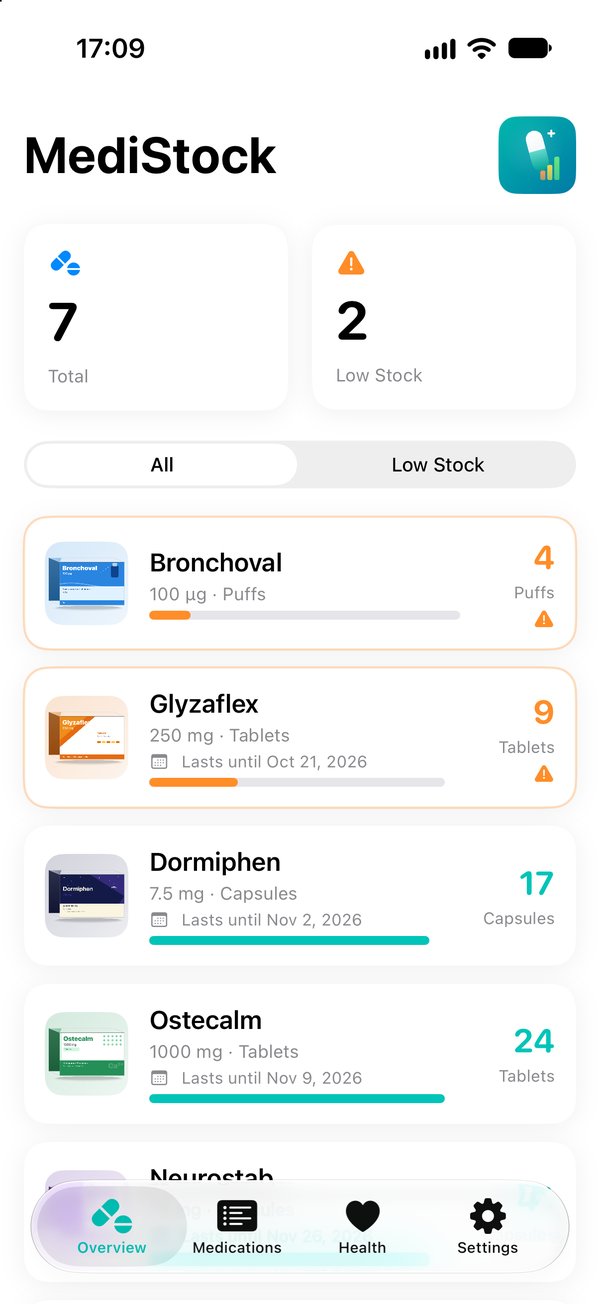
Overview
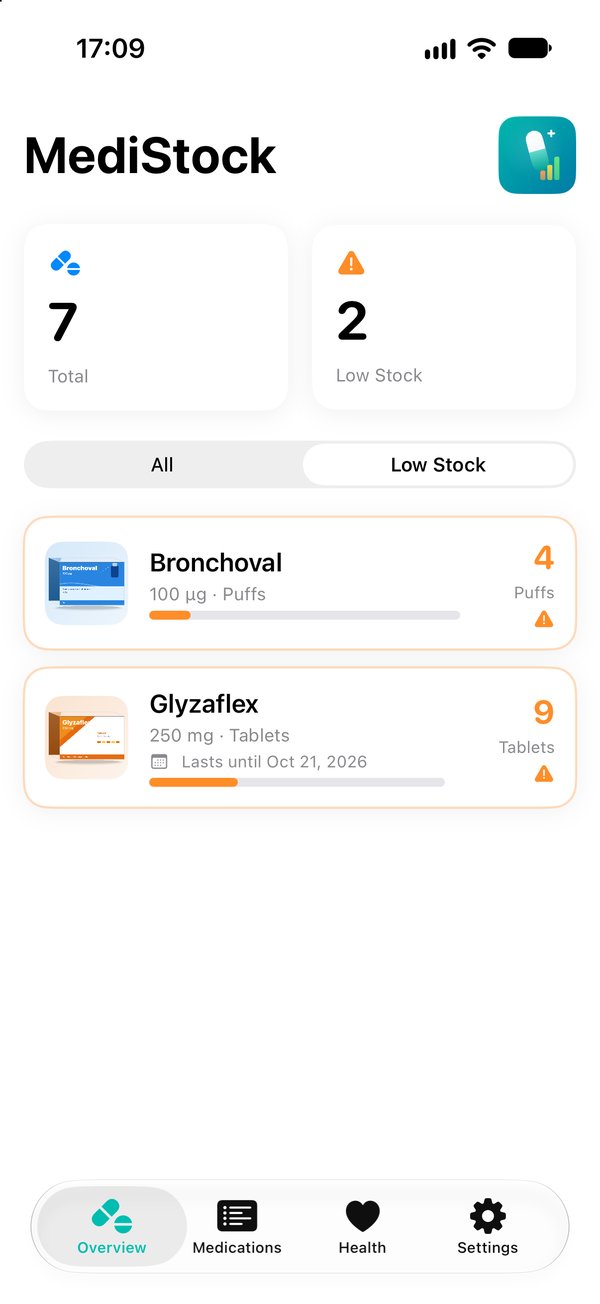
“Low Stock” filter
Medication List
The Medications tab contains an alphabetically sorted list of all your medications.
Features
- Search: Use the search field at the top to quickly find a specific medication.
- Open details: Tap a medication to open its detail view.
- Delete: Tap Edit at the top right, then the red minus symbol next to the medication. Alternatively, swipe left.
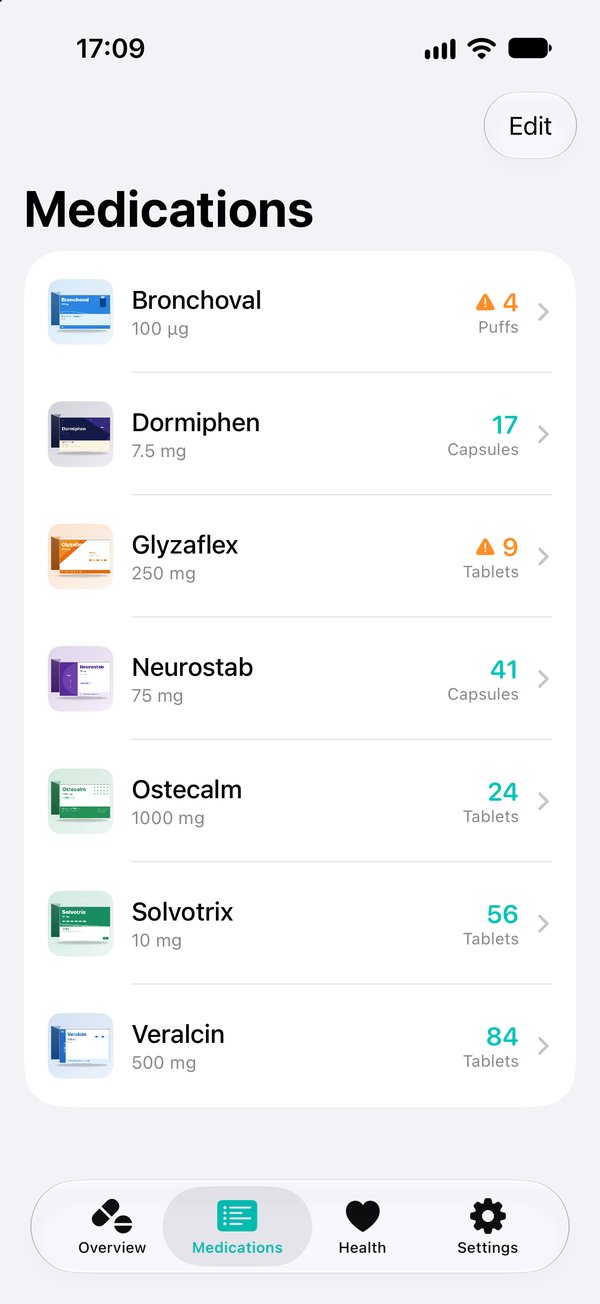
Medication list
Medication Details
Tap a medication on the dashboard or in the list to open its detail view. Here you find all information and actions for a single medication.
Overview
- Current stock with color indicator and alert threshold
- Supply forecast – the date until which the stock is expected to last (only for medications with a schedule, see Dashboard → Supply forecast)
- Adjust Stock – opens the dialog for adding or removing units
- Dose history – shows all doses from Apple Health (taken, skipped, reminded)
Dose history
By default, the history shows the last 5 doses. With Show All you switch to a view grouped by month.
- Each month has a header with the month name and the total amount taken (e.g. April 2026 −25 Tablets).
- The current month is expanded automatically; past months are collapsed at first.
- Tap a header to expand or collapse a month.
- Tap Less to return to the short view.
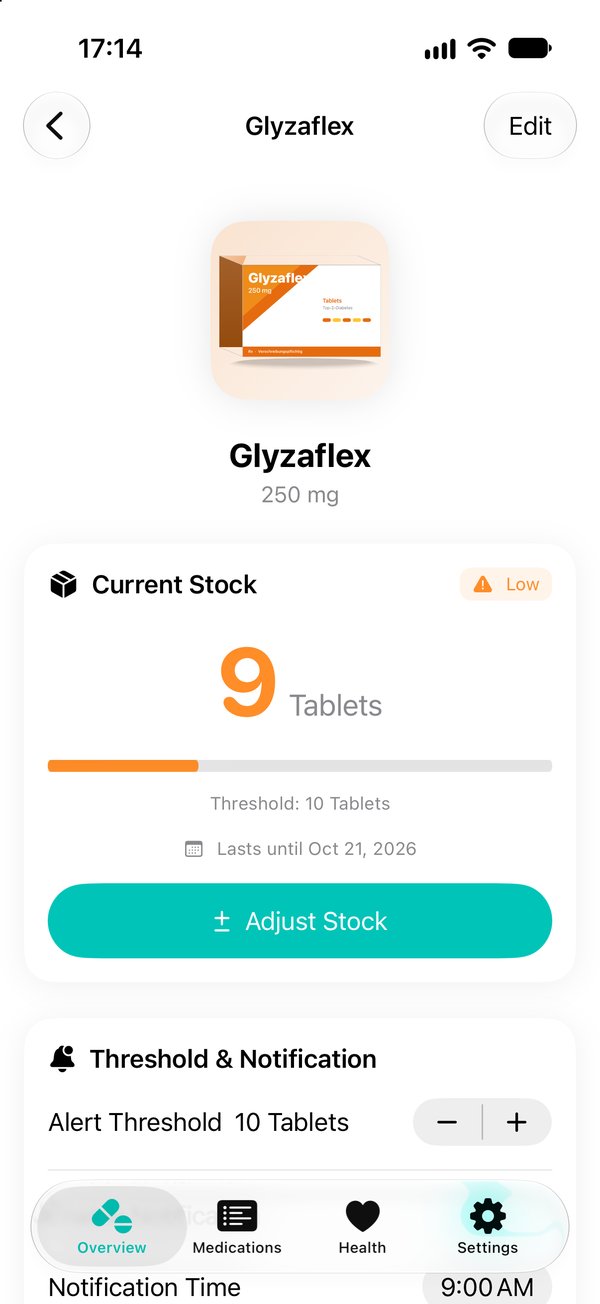
Details & supply
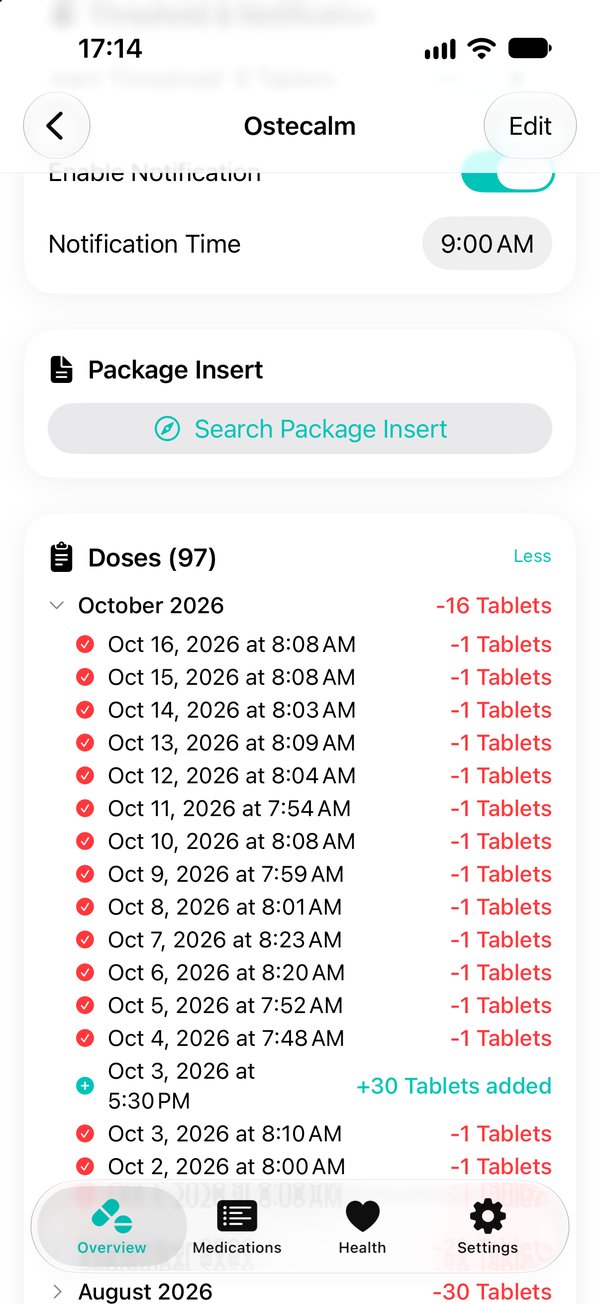
Dose history
Threshold & Notification
Here you can set for each medication:
- The alert threshold (when the stock counts as low)
- Whether a push notification should be sent
- The time of the notification
Package insert
The Search Package Insert button opens a web search for the package insert of your medication in the browser.
Edit
With Edit you can change the name, dosage, unit and add your own photo.
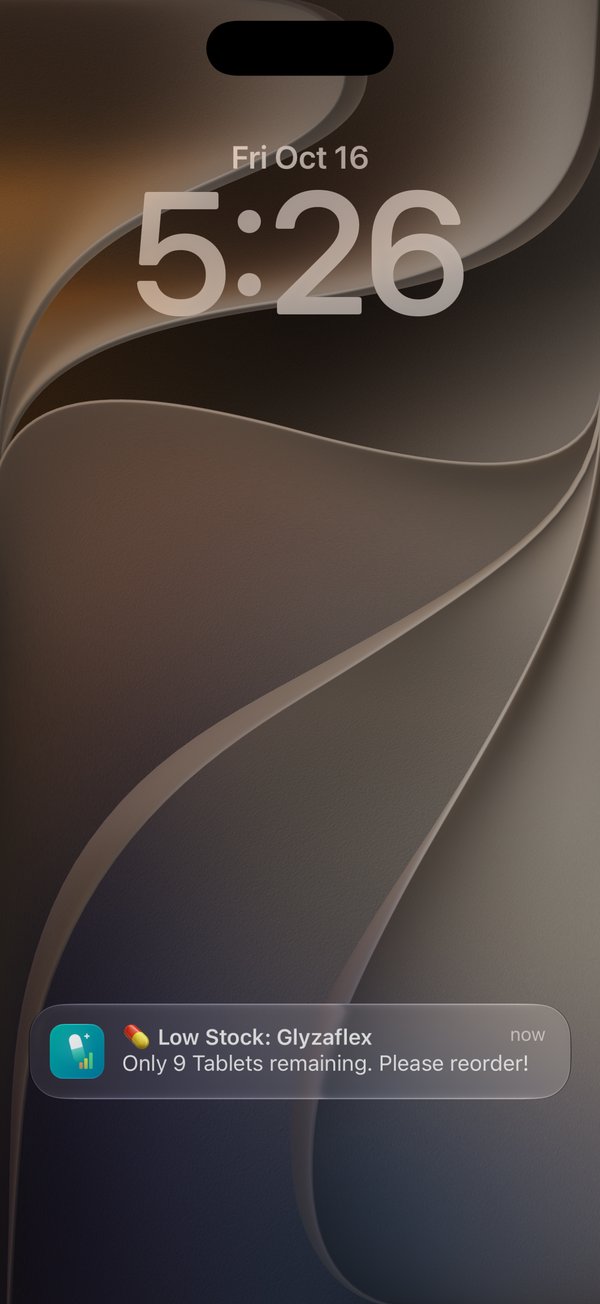
Notification
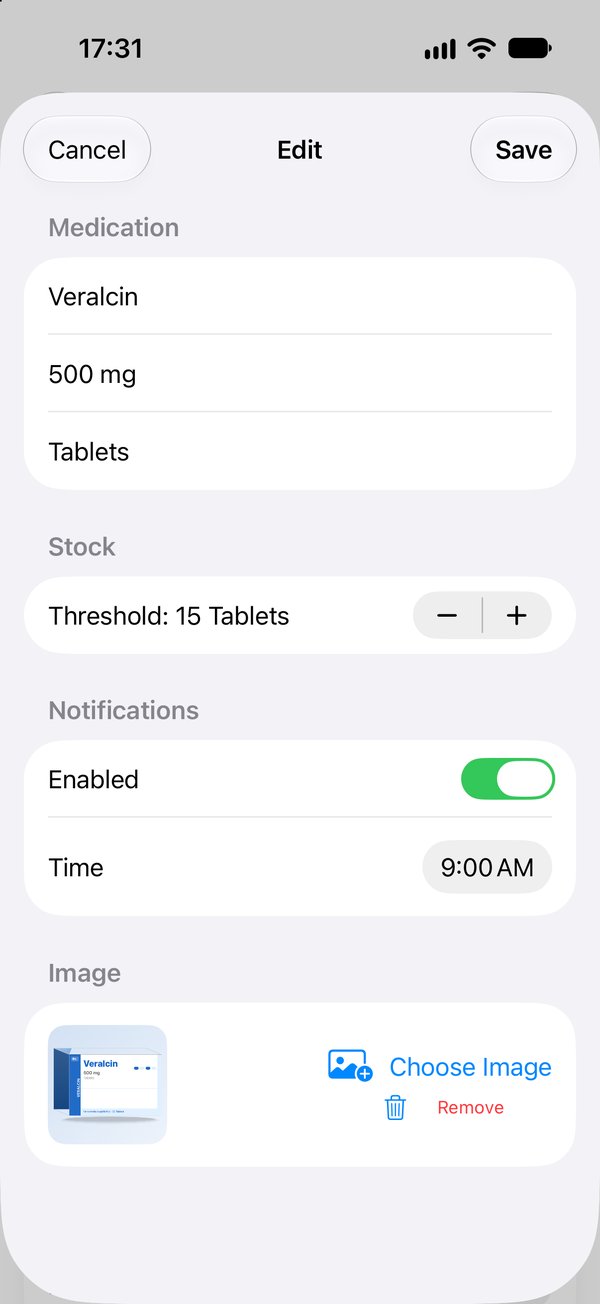
Edit
Adjust Stock
When you buy new packs or remove units manually, you can adjust the stock directly.
- Open the detail view of a medication.
- Tap Adjust Stock.
- Choose Add or Remove.
- Enter the amount or use the quick-select buttons.
- The new stock is shown as a preview.
- Tap Update Stock to confirm.
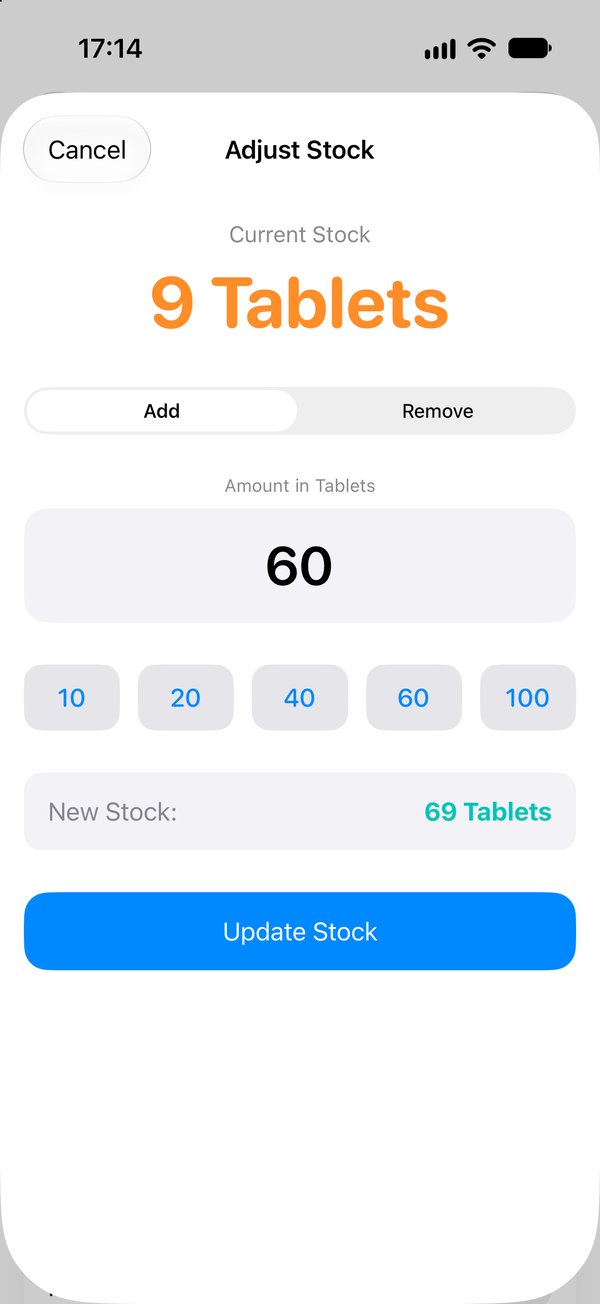
Adjust Stock
Doses you log in Apple Health are automatically deducted from the stock. You only need to adjust the stock manually when you buy new packs.
Apple Health
MediStock syncs with Apple Health to manage your medications and doses automatically.
What is synchronized?
- Medication list: All medications stored in Health can be imported.
- Doses (dose events): Every logged dose is detected and deducted from the stock.
When does it sync?
- Automatically every time the app starts and whenever it comes to the foreground
- Manually via the Health tab → Sync Doses
Dose status
MediStock recognizes different statuses from Apple Health:
- Taken – deducted from the stock
- Skipped – stock remains unchanged
- Reminded / Snoozed – stock remains unchanged
Activate / deactivate medications in MediStock
Next to every medication found in Health and imported, the Health tab has a switch that controls whether the medication is actively managed in MediStock. This way you don’t have to configure in Apple Health which medications are visible – you do it right in MediStock (Health permissions remain untouched).
- Active – stock is synchronized, notifications are possible, and the medication is included in the dashboard, widget and sorting as usual.
- Inactive – the medication stays visible, but its stock is shown as n.a. (not active). It moves to the end of the lists. No Health synchronization takes place.
- Existing data is fully preserved when deactivating – including the stock and the dose history. When you reactivate it, everything is back.
MediStock only reads data from Apple Health – it does not write any data back. Your Health data remains unchanged.
Widgets
MediStock offers three widget sizes for your Home Screen, so your medication stock is always in view – without having to open the app.
Available sizes
- Small – shows a single medication with its stock
- Medium – shows up to three medications side by side
- Large – shows up to six medications as a detailed list with progress bars
Add a widget
- Touch and hold the Home Screen until the apps jiggle.
- Tap + (or Edit → Add Widget) at the top left.
- Search for MediStock.
- Choose the size you want and tap Add Widget.
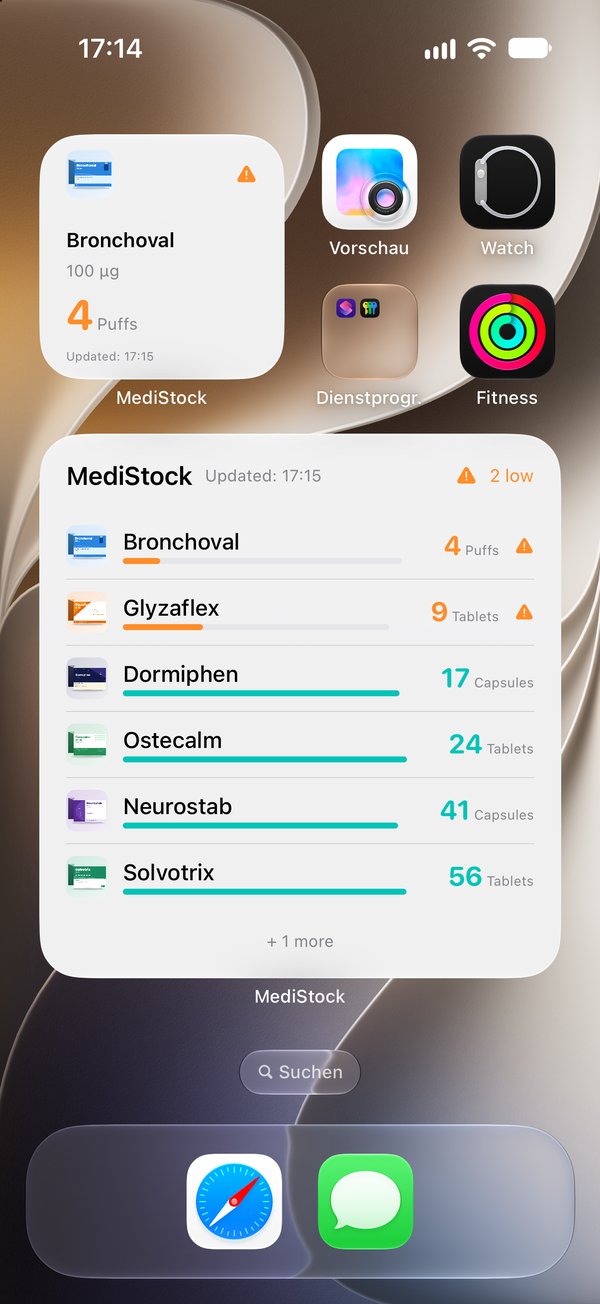
Small & Large
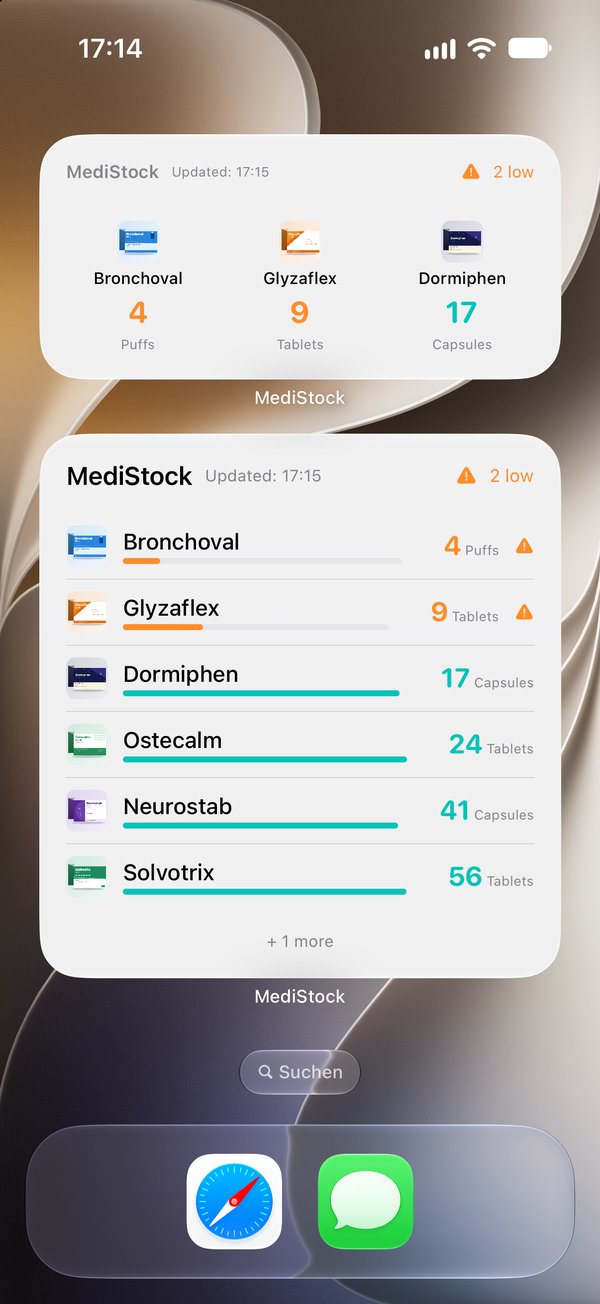
Medium & Large
Tap a medication in the widget to jump directly to its detail view in MediStock.
Settings
In the Settings tab you can adapt MediStock to your needs.
Language
MediStock supports English and German. You can change the language independently of the iOS system language.
Notifications
Turn push notifications for low stock on or off. You can also grant the iOS permission here if it has not been granted yet.
Default Settings
- Default Threshold: The alert threshold preset for new medications.
- Default Notification Time: The time for notifications. When you change it, you are asked whether the new time should be applied to all existing medications.
iCloud Backup
MediStock can automatically back up your data to iCloud. This lets you restore your medications when you switch devices or after reinstalling the app.
- Back Up Now – creates a backup immediately
- Restore – shows available backups with date and number of medications
Data
Here you can see the number of saved medications. With Delete All Data you can permanently remove all medications and stock data.
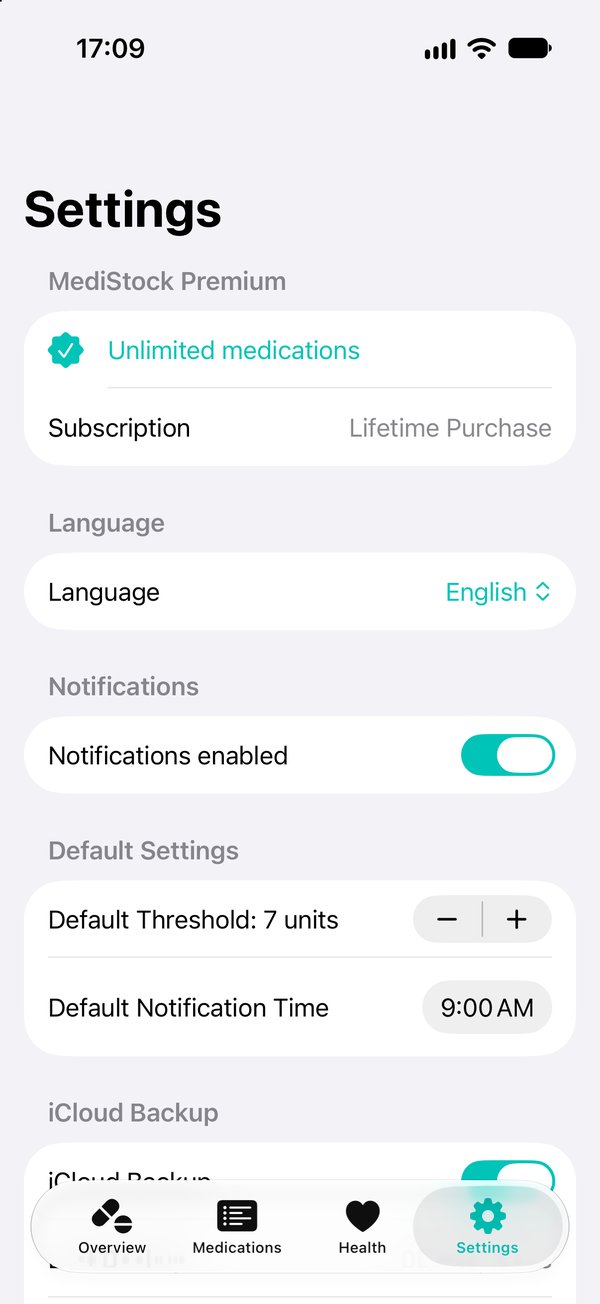
Settings